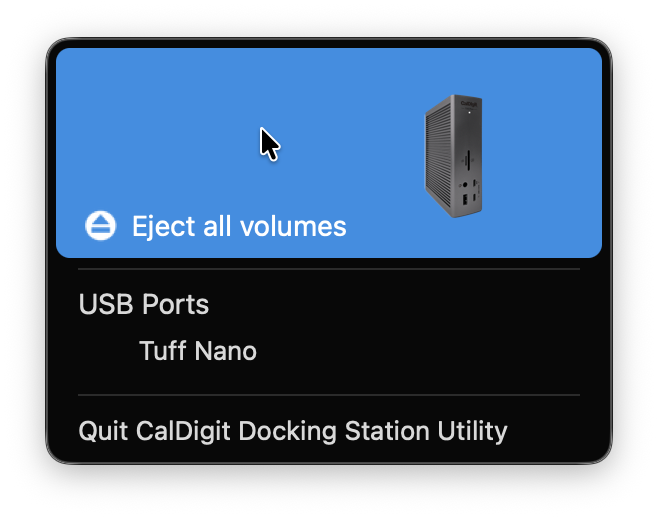

What is the CalDigit Docking Station Utility?
The CalDigit Docking Station Utility is a piece of software available for macOS computers that makes it quick and easy to safely eject your USB and Thunderbolt storage devices from your Mac.
Where and How to Install the CalDigit Docking Station Utility?
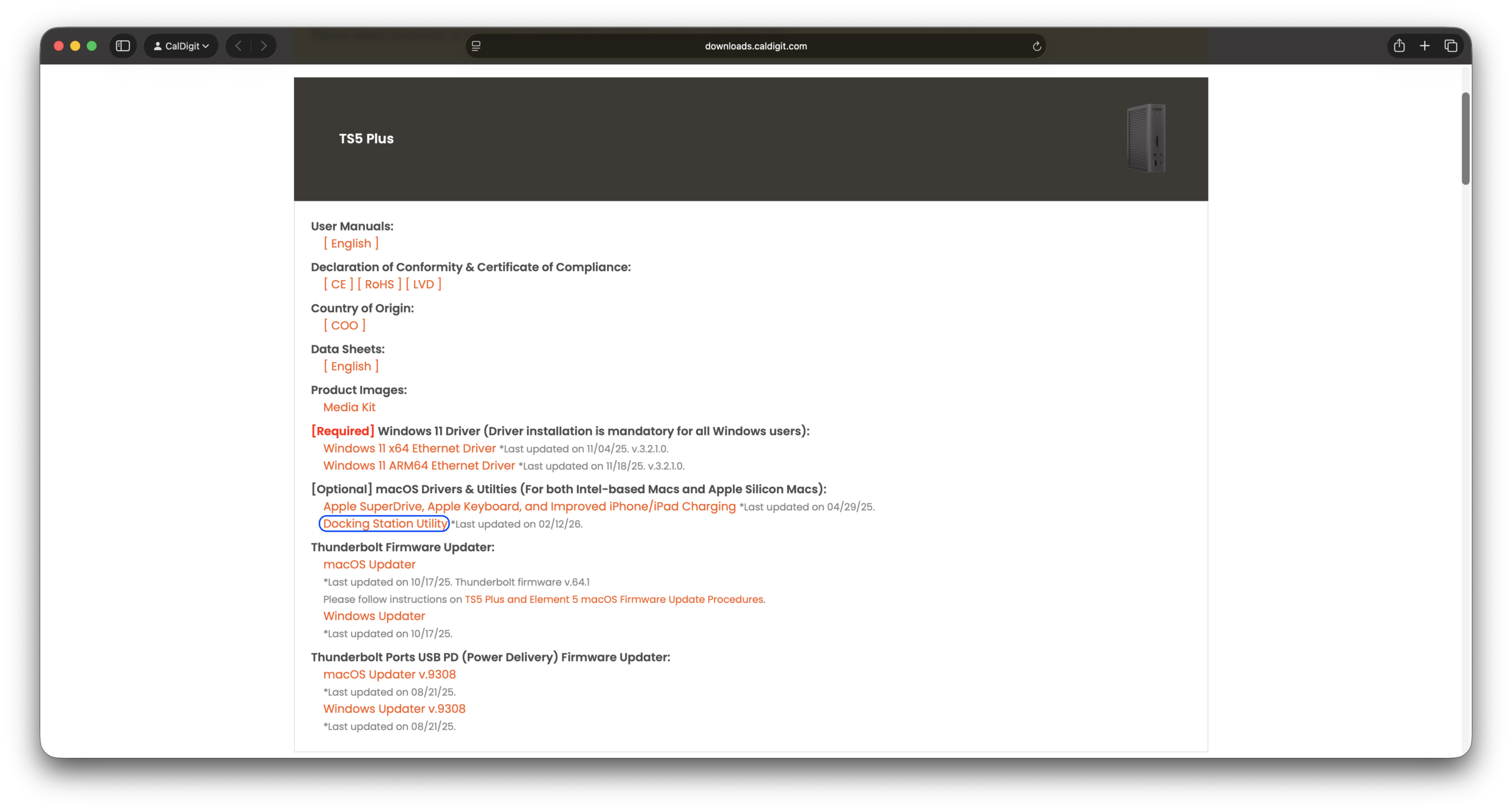
To install the CalDigit Docking Station Utility, navigate to our Downloads Page, find your dock or hub, and click it. Once you click on your dock or hub, look for the [Optional] macOS Drivers & Utilities header and click on the Docking Station Utility. Please use the screenshot for reference:
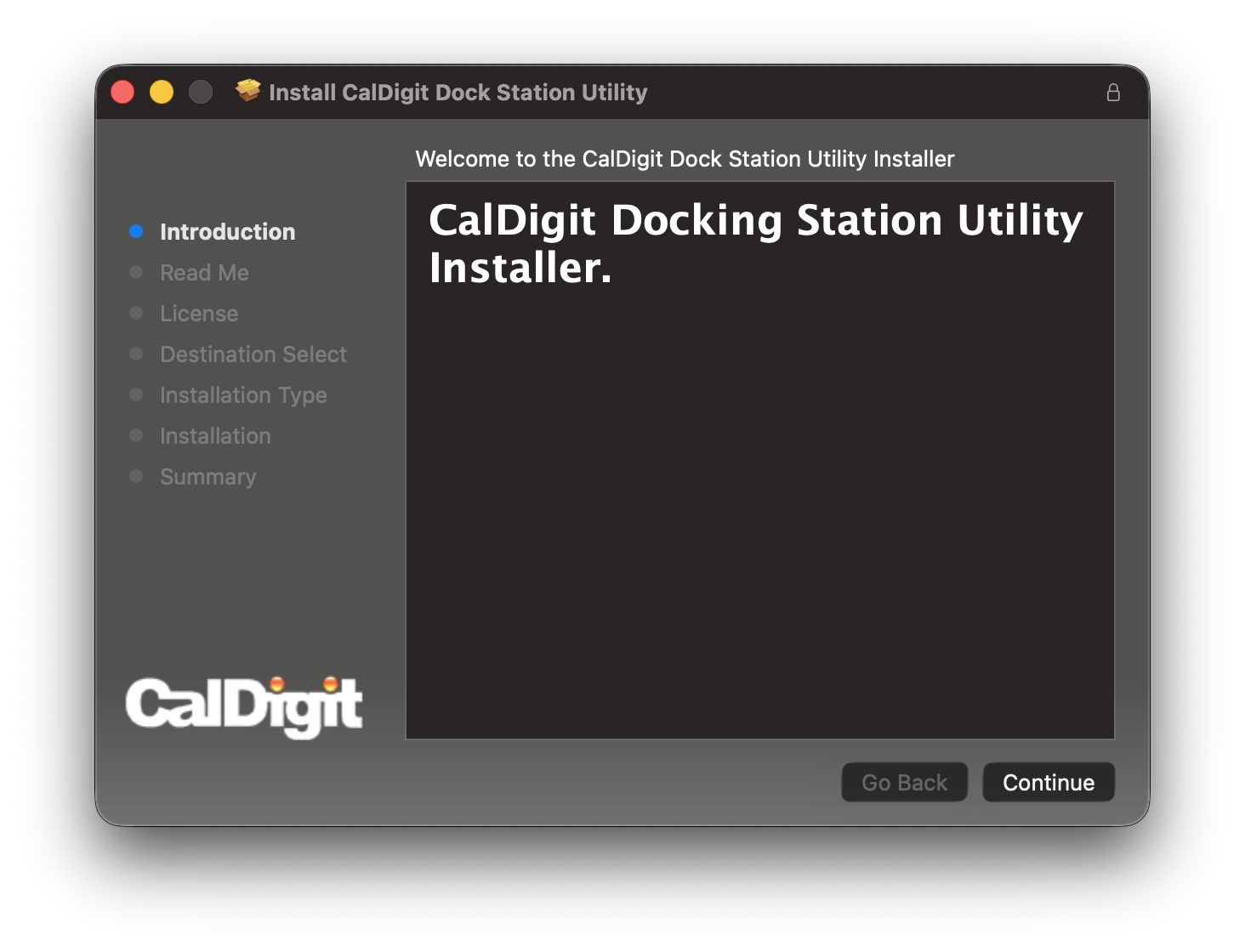
Once the download is completed, navigate to your Downloads folder, double click on the CalDigit-Docking-Station-Utility.zip. You should then see the CalDigit Docking Station Utility v1.x.xx.pkg. Go ahead and double click the CalDigit Docking Station Utility. You should see the following window appear on your screen:
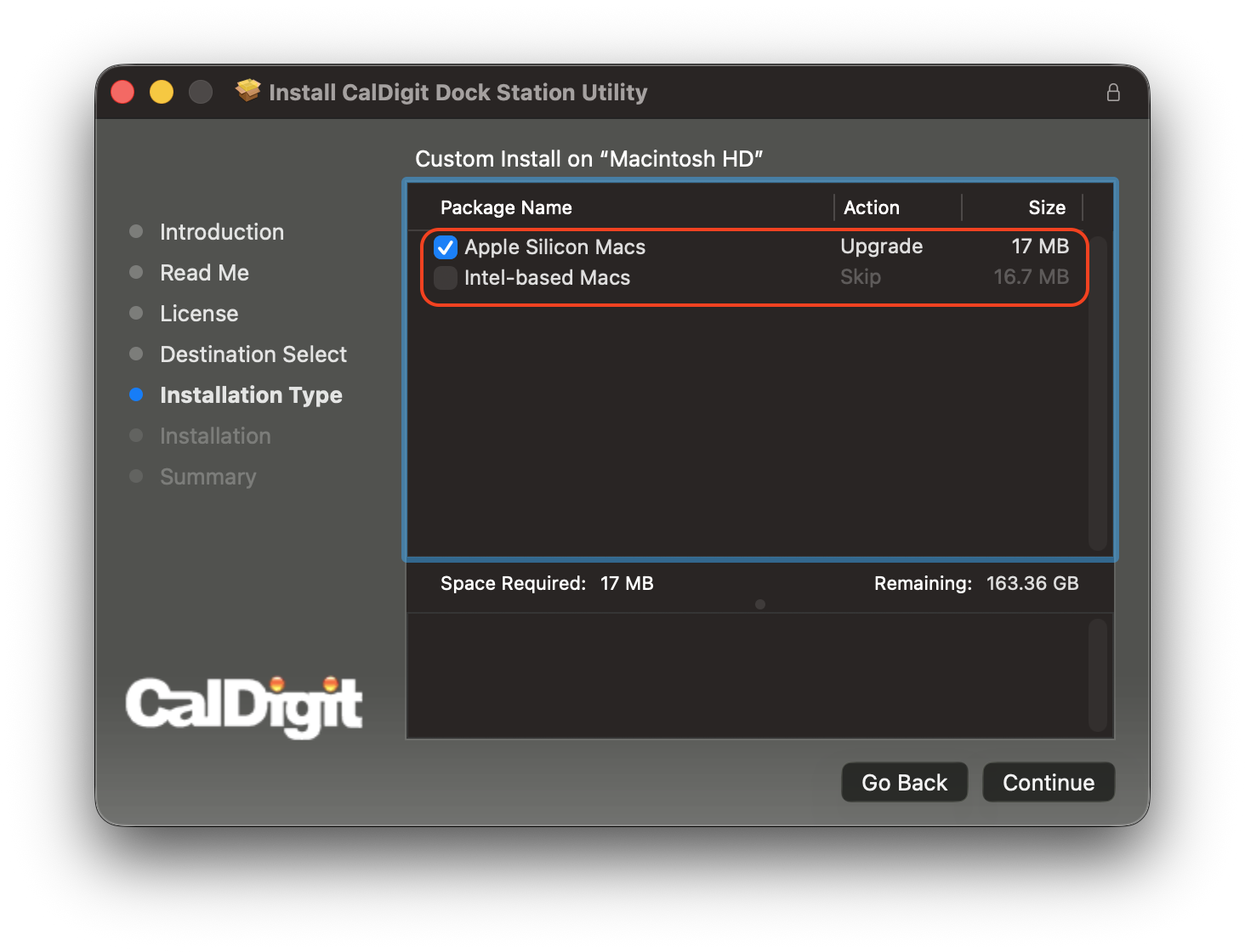
When this window appears on your screen, follow the prompts to install the CalDigit Docking Station Utility. At the ‘Installation Type’ step, select the version that matches your Mac’s chipset (Apple Silicon or Intel).
If you aren’t sure which one you have, go to the Apple Menu () > About This Mac. If the ‘Processor’ or ‘Chip’ section lists an M-series chip (M1, M2, M3, M4, M5), choose Apple Silicon. If it lists Intel, choose Intel-based Mac.
At the end of the installation process, you can move the CalDigit Docking Station Utility Installer to the trash when prompted, as seen here:
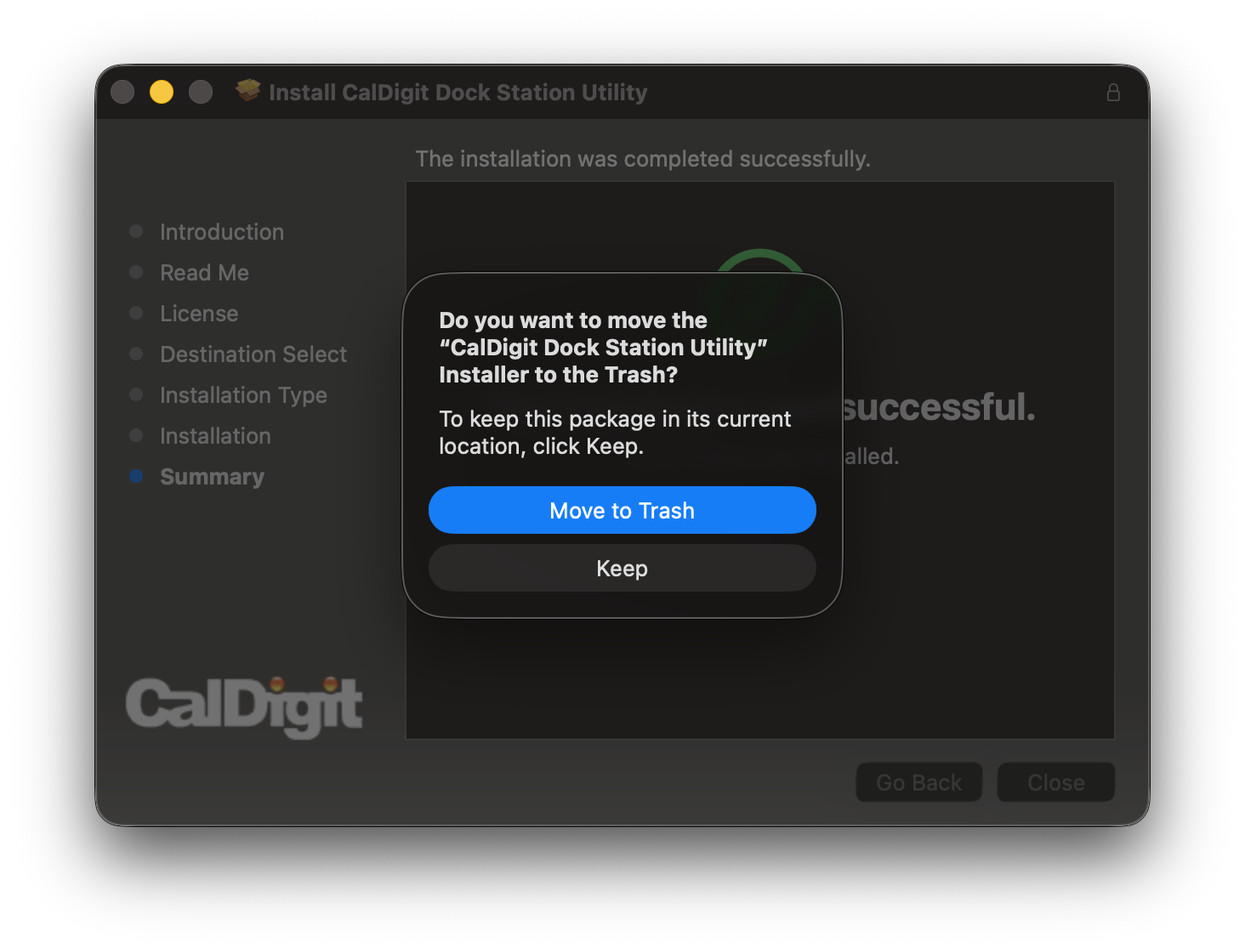
Now that all of the installation steps are completed, safely eject any drives connected to your CalDigit Device through the Finder application. After all storage devices are disconnected, disconnect your CalDigit device from your Mac and restart your Mac. The CalDigit Docking Station Utility should now be installed.
Where to Find, Open, and Use the Utility
By default, the Utility should launch automatically after logging into macOS.
If the Utility does not launch automatically, we have guide to fix that: Launching the CalDigit Docking Station Utility at Start-up
After logging into your Mac, you should see a new icon on the top right of your menu bar. It should look like this:
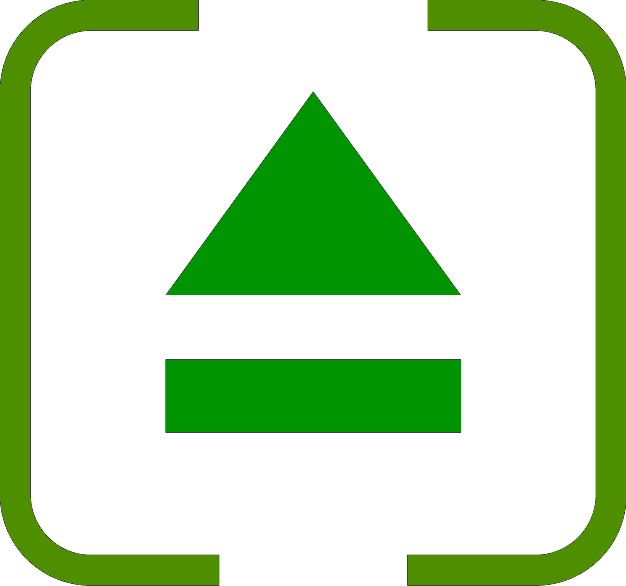
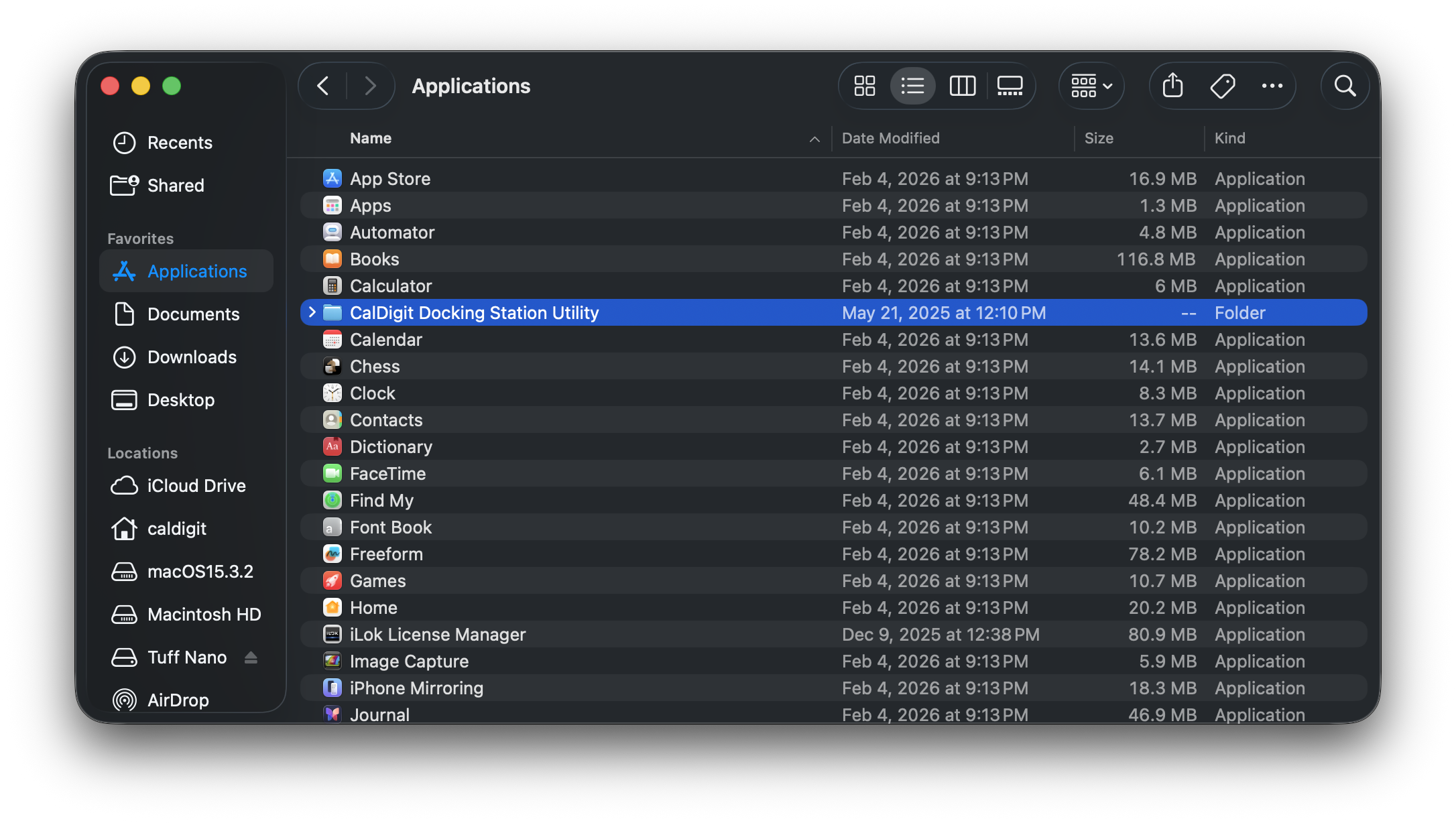
If you do not see this icon in your Menu Bar, open the Finder application, look to the left side, and click Applications. In your Applications folder, you should see the CalDigit Docking Station Utility Folder.
Open the folder and double-click CalDigit_Docking_Station_Utility to launch it.
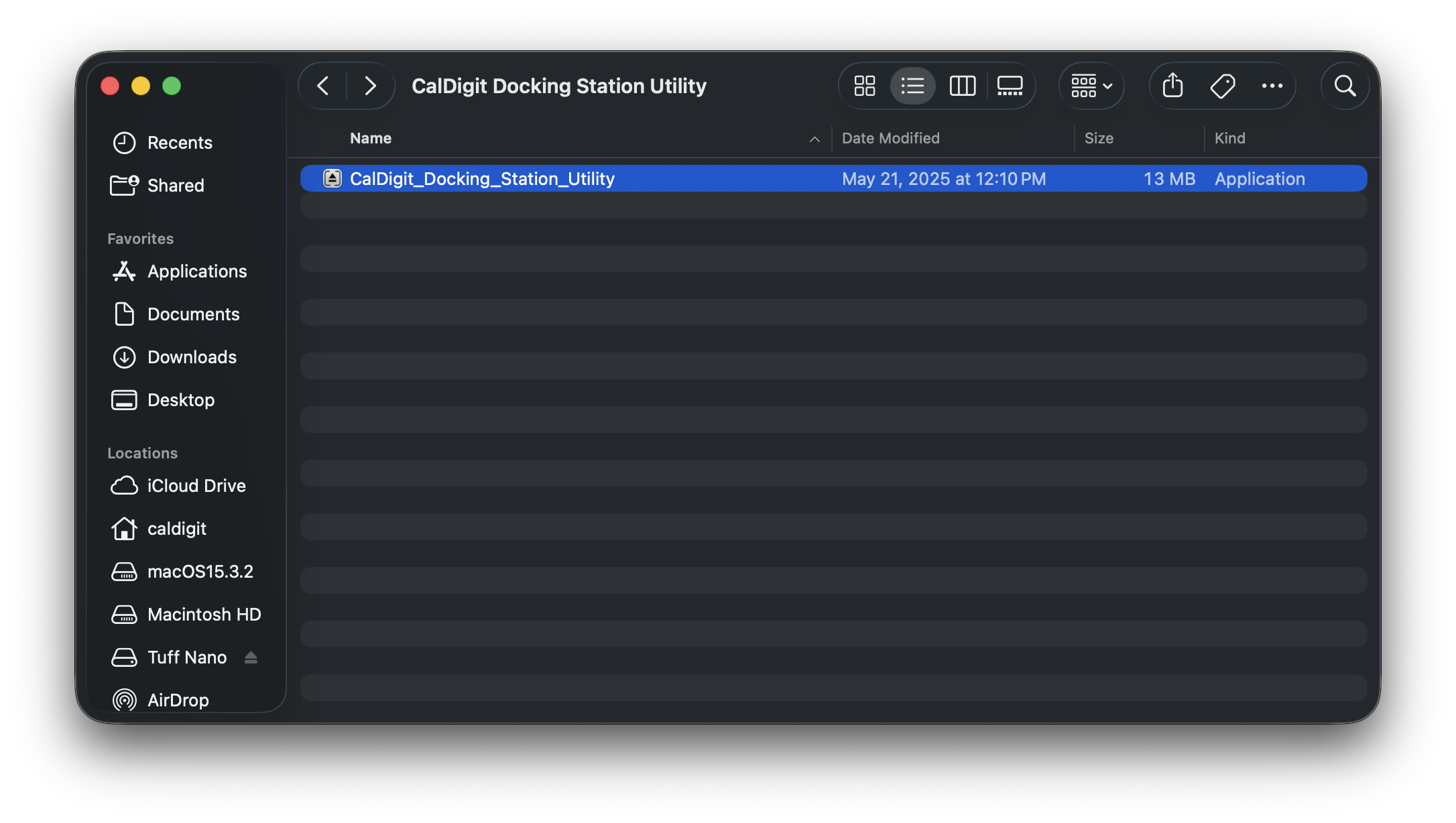
You should now see the utility on the top right of your Menu Bar. Click on the utility in the menu bar. If your CalDigit device is connected to your Mac, you should see an image of your device and a list of the storage devices connected to your dock. If your device is disconnected, the utility will display: ‘Found no CalDigit Docking Stations.
Ejecting Your Storage Devices
To eject the storage devices connected to your CalDigit device, click the Utility (  ) from the Menu Bar and simply click on the storage devices(s) that you want to eject.
You can also eject all attached storage devices by clicking on the image of your Dock: