

Last Modified: Sept 29th, 2026
Latest TS5 Plus and TS5 Thunderbolt firmware version: 71.1
Latest Element 5 Hub Thunderbolt firmware version: 71.71
Notes:
- If your computer is running a previous version of macOS, such as macOS 11 or 12, please update to 14.6 or above.
- If your computer is a Windows base Thunderbolt 4 or 5 computer, please use this Windows updater.
- Firmware v.71.1 and v71.71 are to improve monitor and USB stability.
Steps:
1. If you are able to, remove all the connected devices from Mac and from your CalDigit Thunderbolt 5 device including external monitors.
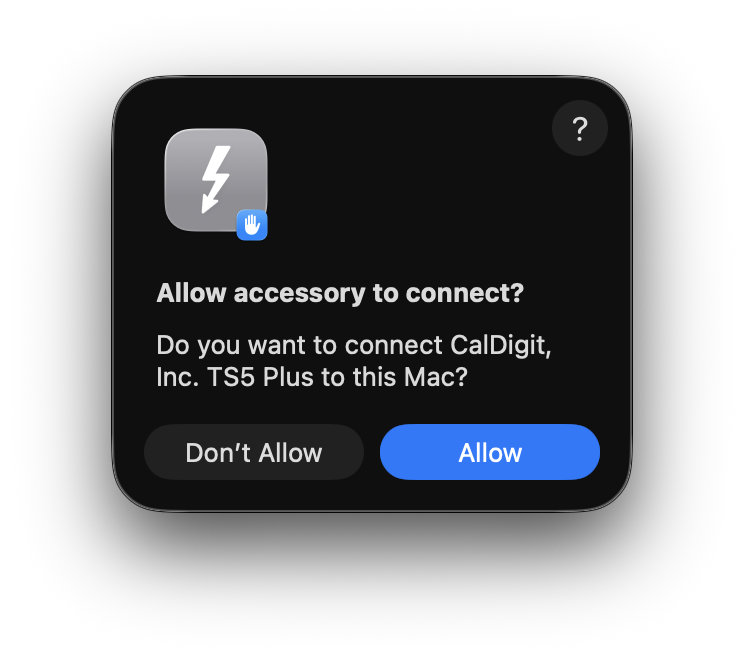
2. Make sure your TS5 Plus, TS5 or Element 5 is allowed to connect to your Apple silicon Mac as the Apple silicon Mac requires extra steps to authorize connection to the external devices. Please see the details here: macOS Ventura and USB/Thunderbolt Device Security
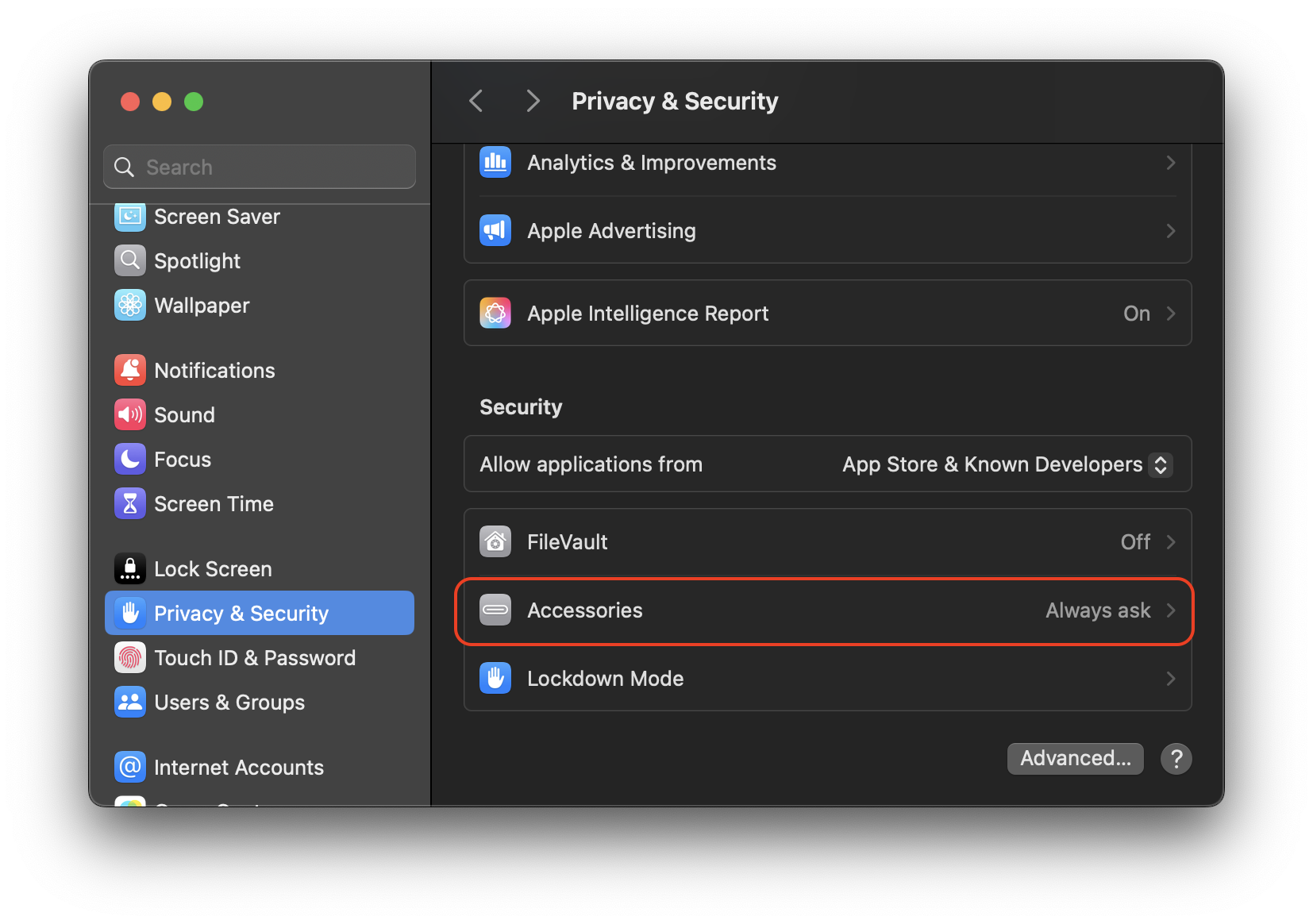
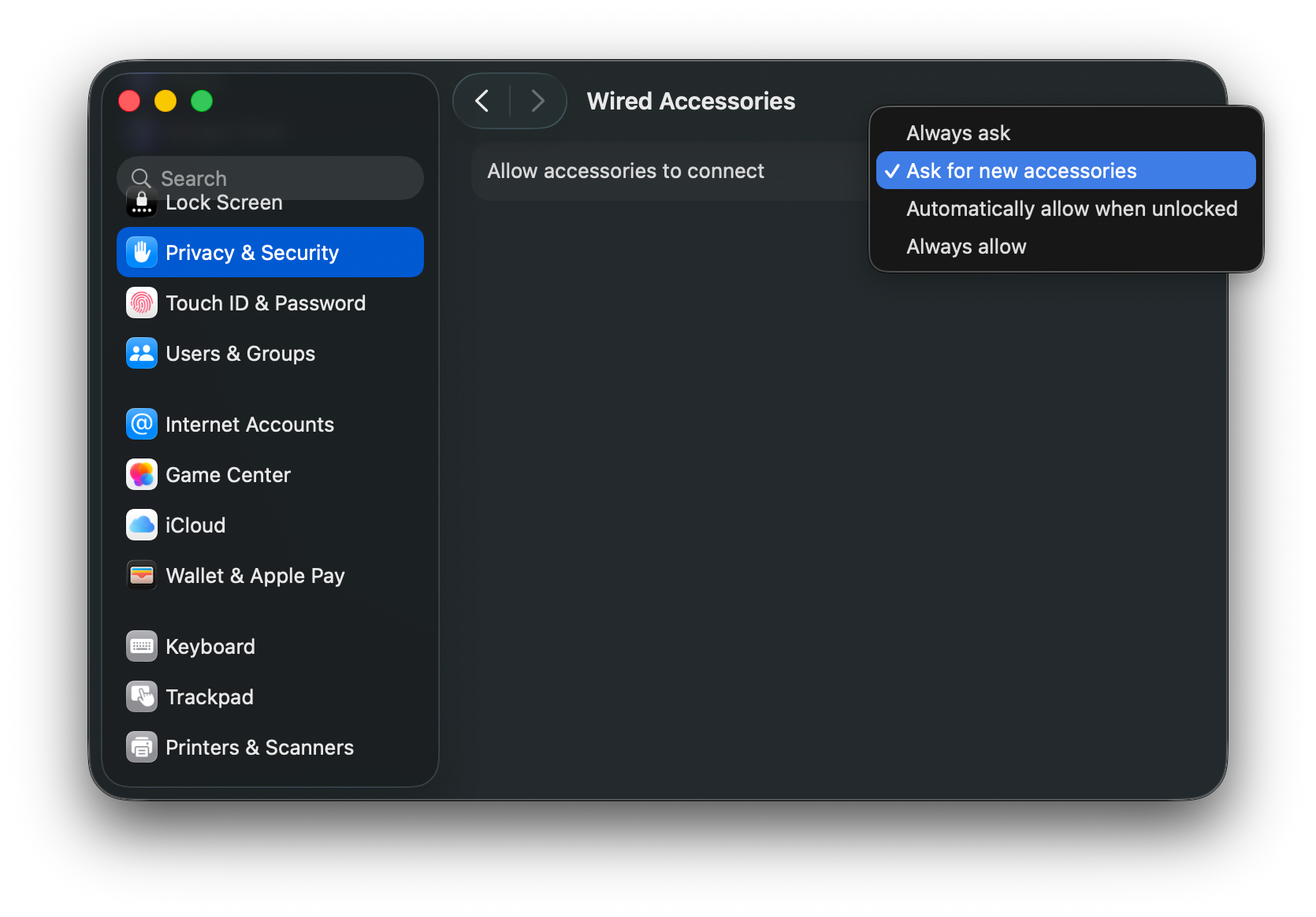
When used with the MacBook in particular, there’s one further security setting to change. Navigate to your System Settings, then “Privacy & Security” -> “Accessories“. Note the current setting, and then change it to “Ask for new accessories“. After completing this update, feel free to revert this setting back.
3. Download the latest macOS Thunderbolt Firmware updater for CalDigit devices
https://downloads.caldigit.com/TS5Plus/CalDigit_Thunderbolt_Firmware_Updater_v2.12.pkg.zip
4. Unplug your CalDigit Thunderbolt 5 device from computer.
5. Unzip and launch the installer package and follow the installation instructions.
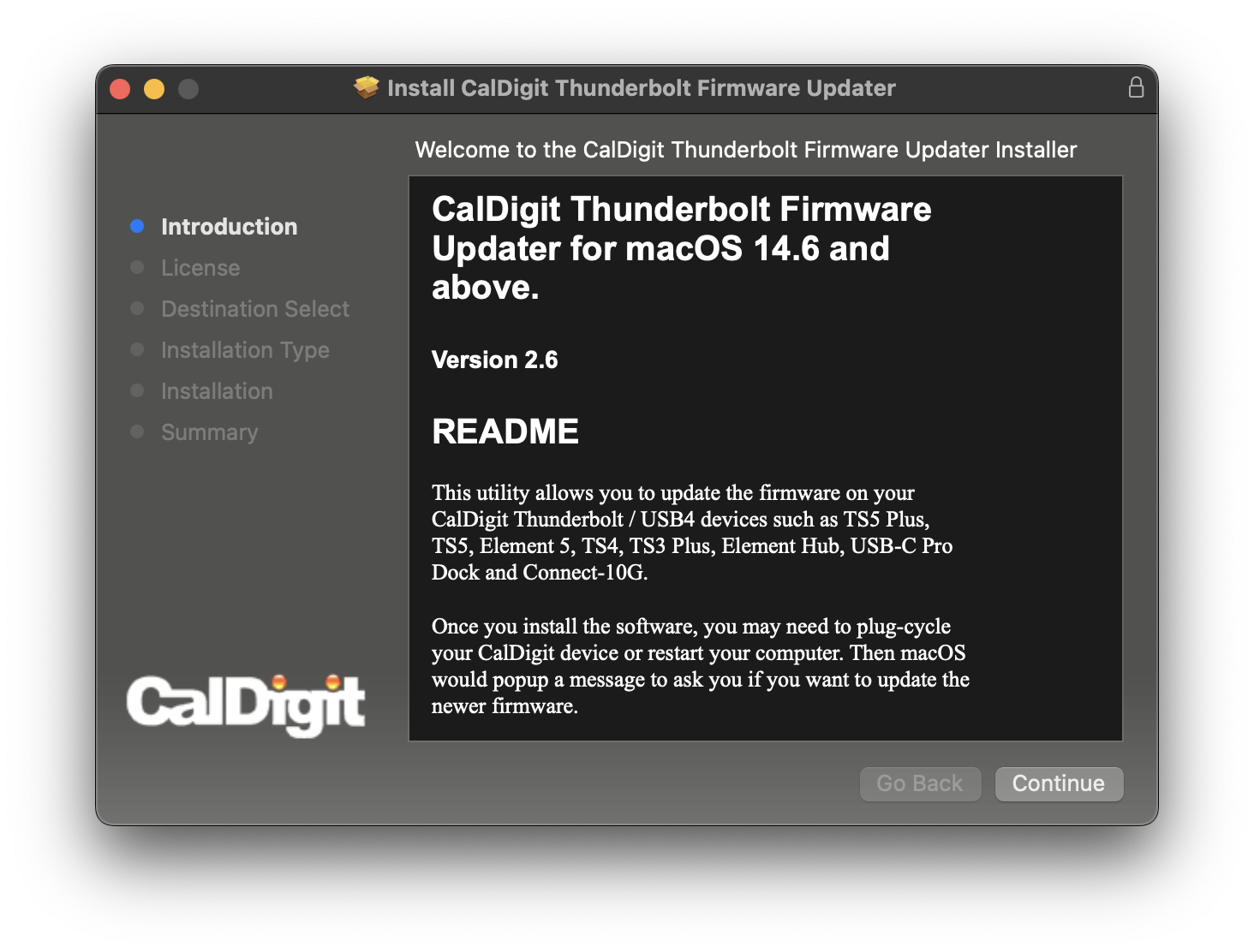
6. After the installation has finished, please plug in your CalDigit device to the computer.
7. You should see a macOS alert window at the top right of your screen.
- If the below pop-up does not appear, first ensure that the computer’s focus modes are turned off as this can sometimes block pop-ups from appearing. If the prompt still does not appear, disconnect your external displays from the dock, and try reconnecting the dock to the computer. Should the prompt still fail to appear, please restart the computer.
On the alert pop-up, select the “Options” menu, and then click on “Update”.
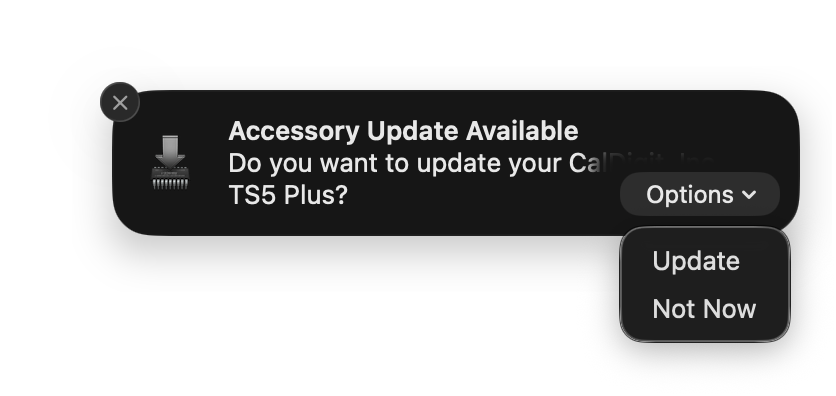
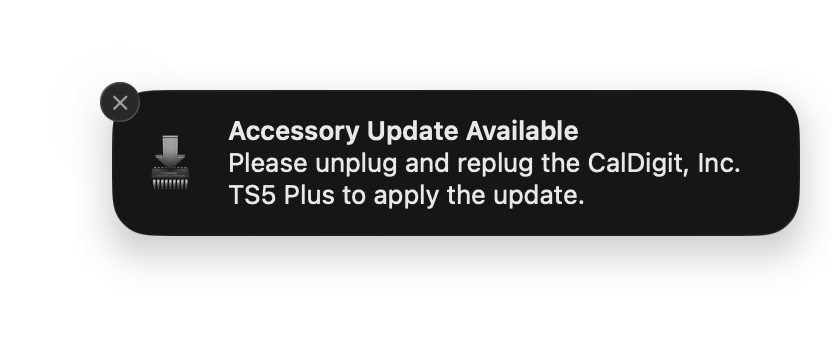
8. Once you click on “Update”, macOS will popup another alert window and ask you to replug the device. You can do this by disconnecting the dock from your Mac for 5 seconds before plugging it back in. While the dock is unplugged, be sure to dismiss the pop-up window.
9. Once the device is reconnected, macOS will silently update the Thunderbolt firmware on the dock. This means there will be no progress bar to track when the firmware update is completed. After reconnecting the device, it may take up to 8-10 minutes; please do not disconnect the dock from the computer or wall power during this time.
Although there is no progress bar when reconnecting your device, you can follow the progress of the firmware update through the Console application. We have written a knowledge base article describing how to do so: https://www.caldigit.com/tracking-the-thunderbolt-firmware-update-process-on-macos/
When the firmware update completes, the dock will restart itself. You may see the LED light on your device turn itself off and on quickly. If you previously set Accessories to always ask to connect, you should see a notification pop-up. Click on “Allow” button to accept the Thunderbolt device with the new Thunderbolt firmware.
10. You can launch “System Information” and navigate to “Thunderbolt / USB4” section to verify TS5 Plus’, TS5’s or Element 5 Hub’s firmware version. It now should show 71.1 if you have a TS5 or TS5 Plus, or 71.71 if you have an Element 5 Hub.
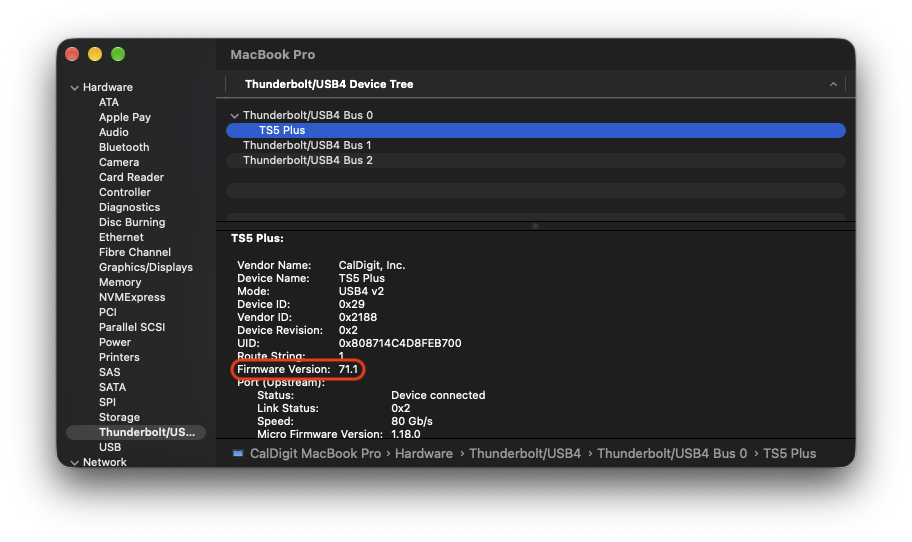
Once you have confirmed the new firmware version on your TS5 Plus, TS5 or Element 5 Hub, you can remove this Thunderbolt firmware updater from your macOS. Please download the uninstaller from https://downloads.caldigit.com/Thunderbolt-Firmware-Updater-Uninstaller.dmg.zip
Related Articles
Tracking the Thunderbolt Firmware Update Process on macOS
Checking the Thunderbolt Firmware Version of my CalDigit Device on macOS