

Last Modified: Jan 27, 2026
Latest TS4 Thunderbolt firmware version: 45.1
Notes:
- If your computer is running a previous version of macOS, such as macOS 11 or 12, please update to 13.1 or above.
- If your computer is a Windows base Thunderbolt 3/4/5 computer, please use this Windows updater.
- Firmware v.45.1 is to improve downstream USB4 and Thunderbolt compatibility on the downstream Thunderbolt 4 ports.
Steps:
1. Remove all the connected devices from the Mac and TS4. If using a desktop Mac, you can keep your mouse, keyboard, and monitor directly connected to the Mac if needed.
2. Make sure your TS4 is allowed to connect to your Apple silicon Mac as the Apple silicon Mac requires extra steps to authorize connection to the external devices. Please see the details here: macOS Ventura and USB/Thunderbolt Device Security
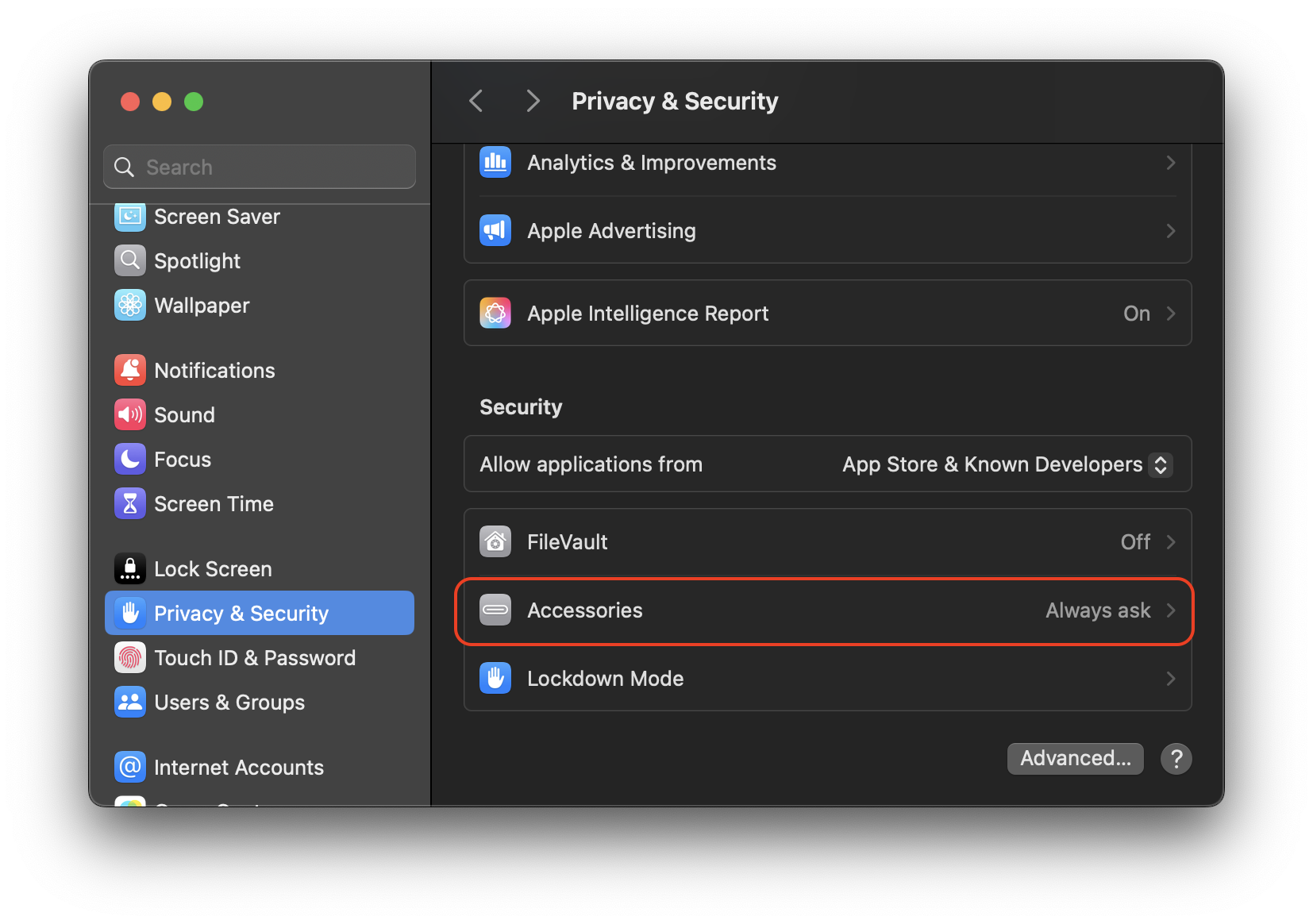
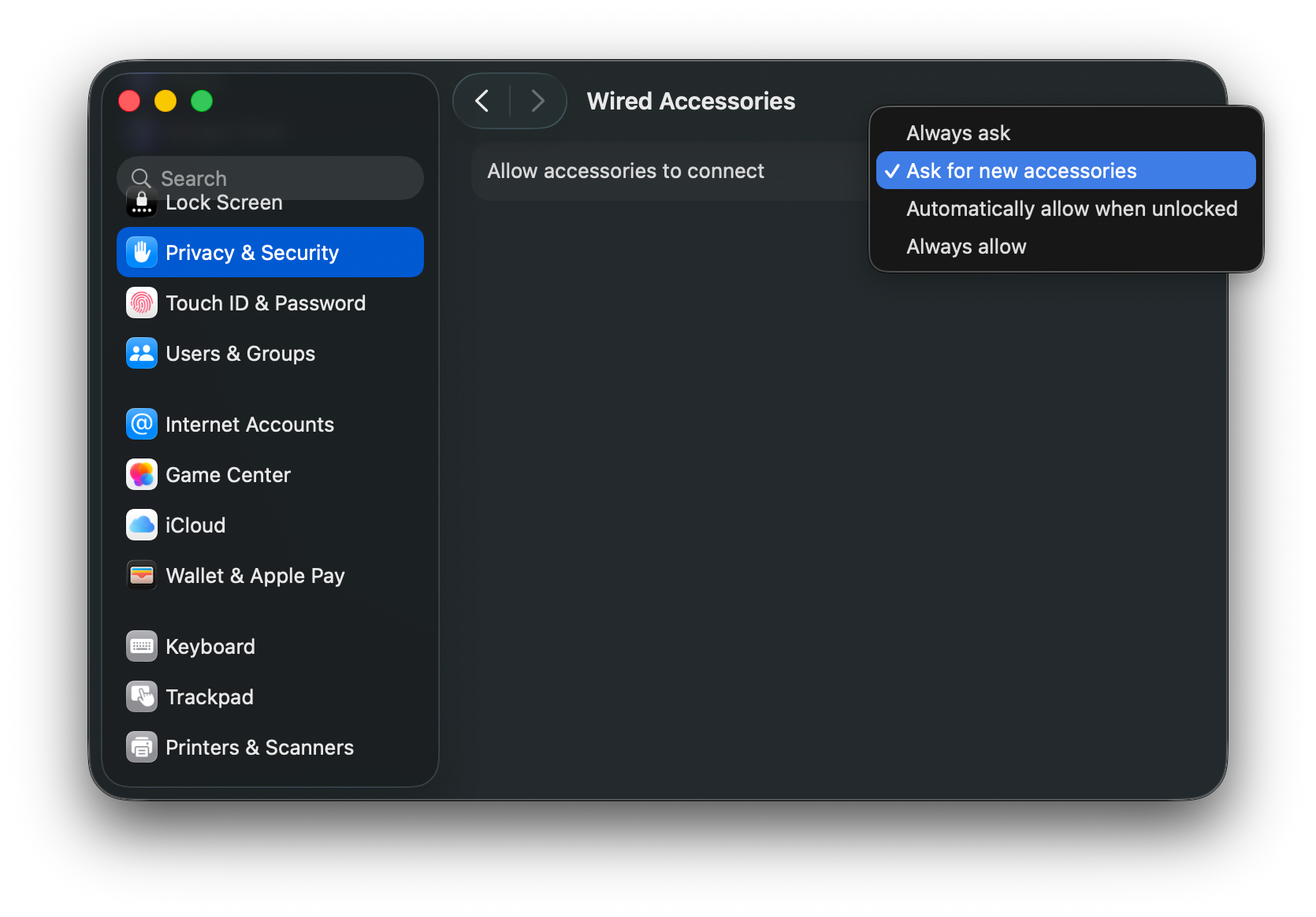
When used with the MacBook in particular, there’s one further security setting to change. Navigate to your System Settings, then “Privacy & Security” -> “Accessories“. Note the current setting, and then change it to “Ask for new accessories“. After completing this update, feel free to revert this setting back.
3. Download the latest macOS Thunderbolt Firmware updater for CalDigit devices
https://downloads.caldigit.com/TS5Plus/CalDigit_Thunderbolt_Firmware_Updater_v2.9.pkg.zip
4. Unplug your CalDigit TS4 from computer.
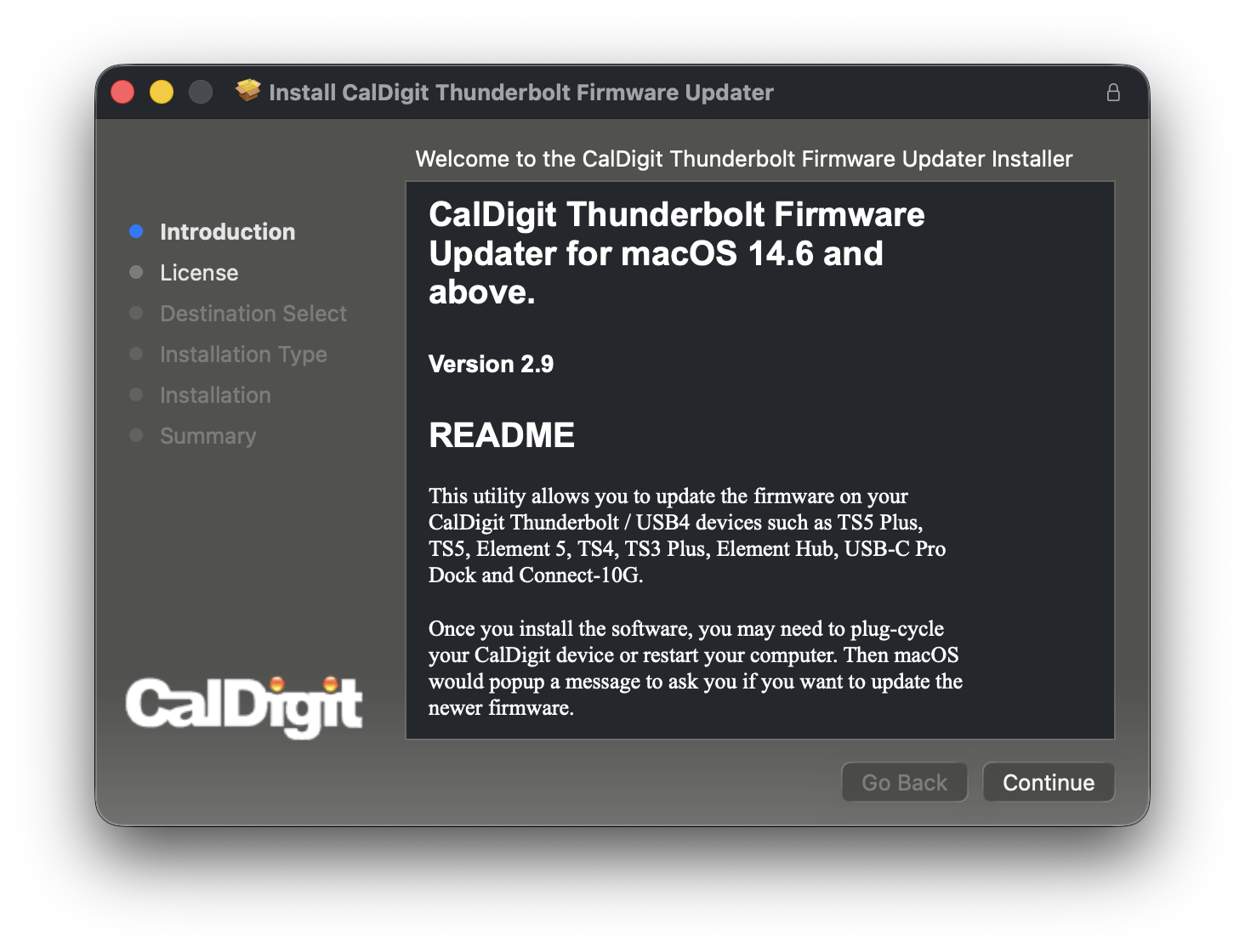
5. Unzip and launch the installer package and follow the installation instructions.
6. After the installation has finished, please plug in your CalDigit device to the computer.
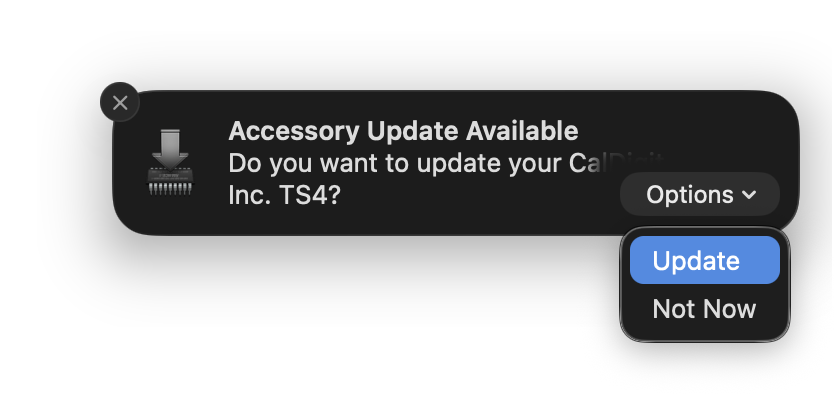
7. You should see a macOS alert window at the top right of your screen.
- If the below pop-up does not appear, first ensure that the computer’s focus modes are turned off as this can sometimes block pop-ups from appearing. If the prompt still does not appear, disconnect your external displays from the dock, and try reconnecting the dock to the computer. Should the prompt still fail to appear, please restart the computer.
On the alert pop-up, select the “Options” menu, and then click on “Update”.
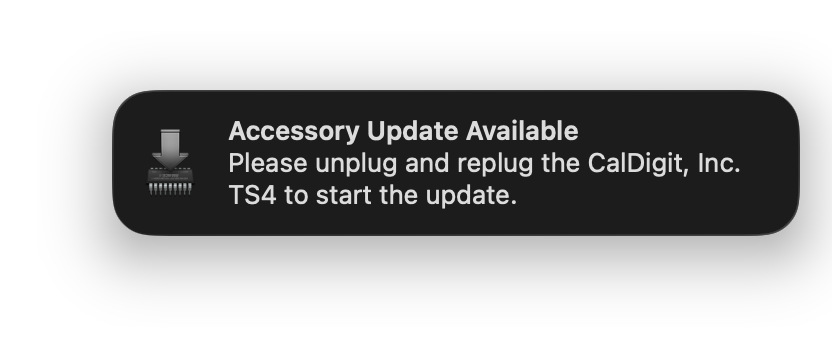
8. Once you click on “Update”, macOS will popup another alert window and ask you to replug the device. You can do this by disconnecting the dock from your Mac for 5 seconds before plugging it back in. While the dock is unplugged, be sure to dismiss the pop-up window.
9. Once the device is reconnected, macOS will silently update the Thunderbolt firmware on the dock. This may take up to 8-10 minutes; please do not disconnect the dock from the computer or wall power during this time.
If you would like to track the progress of the firmware update, please refer to this Knowledge Base Article: Tracking the Thunderbolt Firmware Update Process on macOS
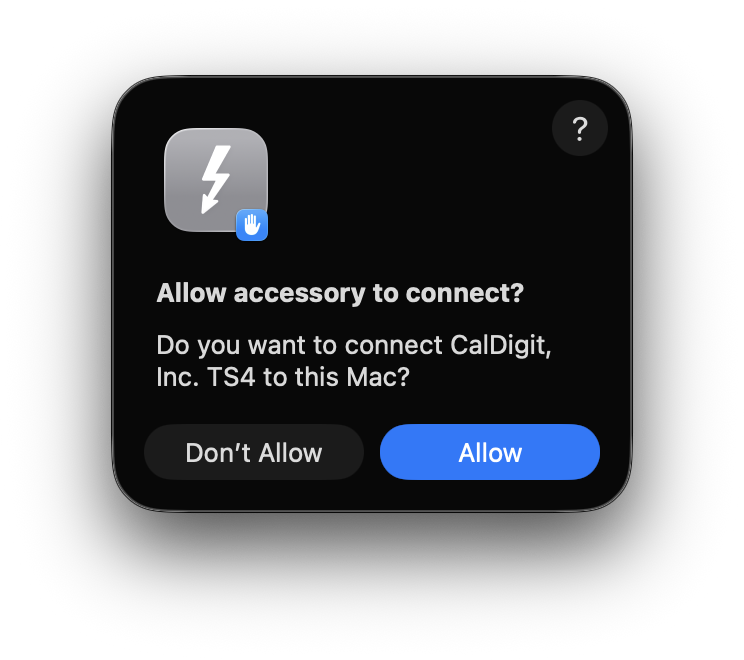
When the firmware update completes, the dock will restart itself. You may see the LED light on your device turn itself off and on quickly. If you previously set Accessories to always ask to connect, you should see a notification pop-up. Click on “Allow” button to accept the Thunderbolt device with the new Thunderbolt firmware.
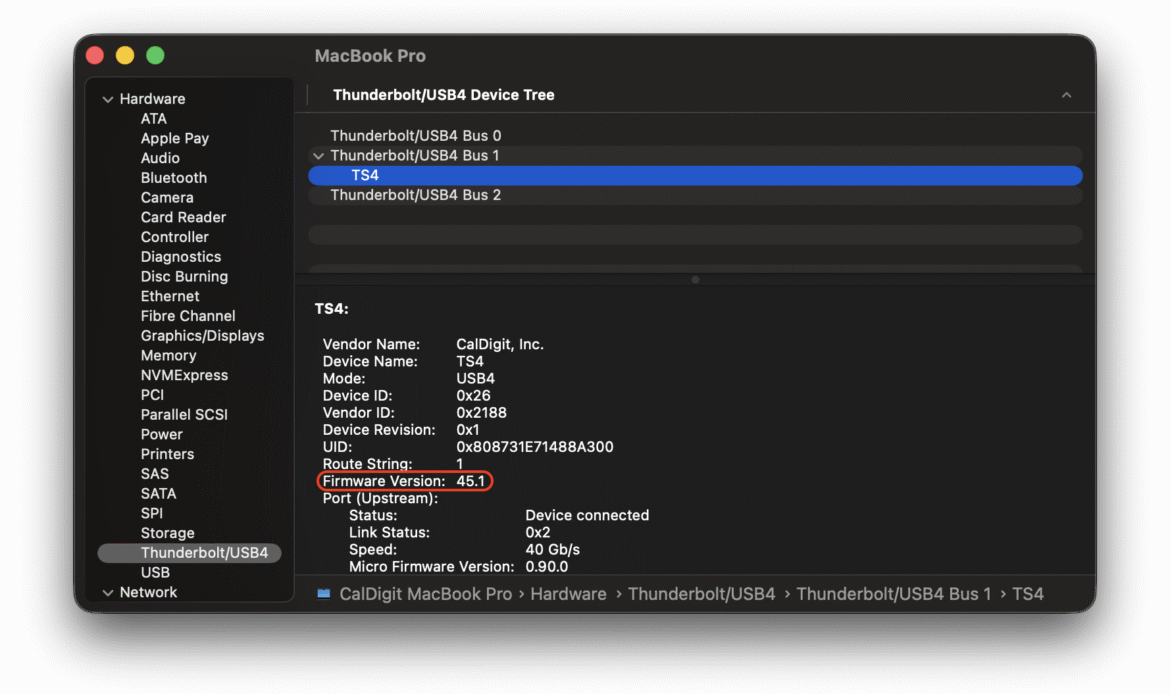
10. You can launch “System Information” and navigate to “Thunderbolt / USB4” section to verify the TS4’s firmware version. It now should show 45.1.
Once you have confirmed the new firmware version on your TS4 you can remove this Thunderbolt firmware updater from your macOS. Please download the uninstaller from https://downloads.caldigit.com/Thunderbolt-Firmware-Updater-Uninstaller.dmg.zip