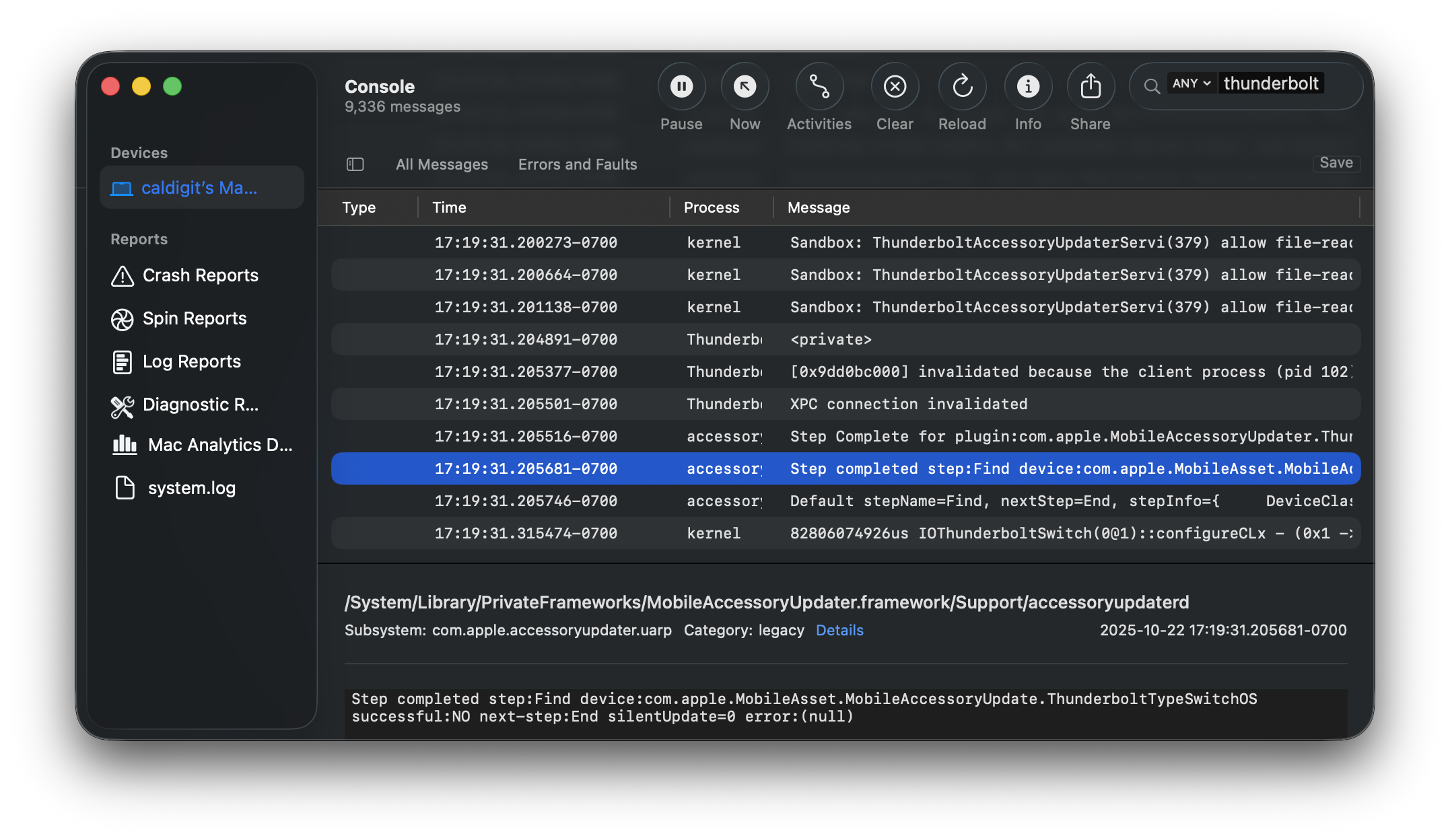

Tracking the progress of the Thunderbolt update is not required, however, it may help ensure that the update is loading correctly. When following these steps, we also suggest utilizing the accompanying knowledge base article on updating Firmware on CalDigit docks, as it will be referenced throughout this article.
To begin, disconnect the Thunderbolt dock from your Mac.
Open up the Console application and in the search bar in the top right type in “Thunderbolt”, and then press “Start” in the top section.
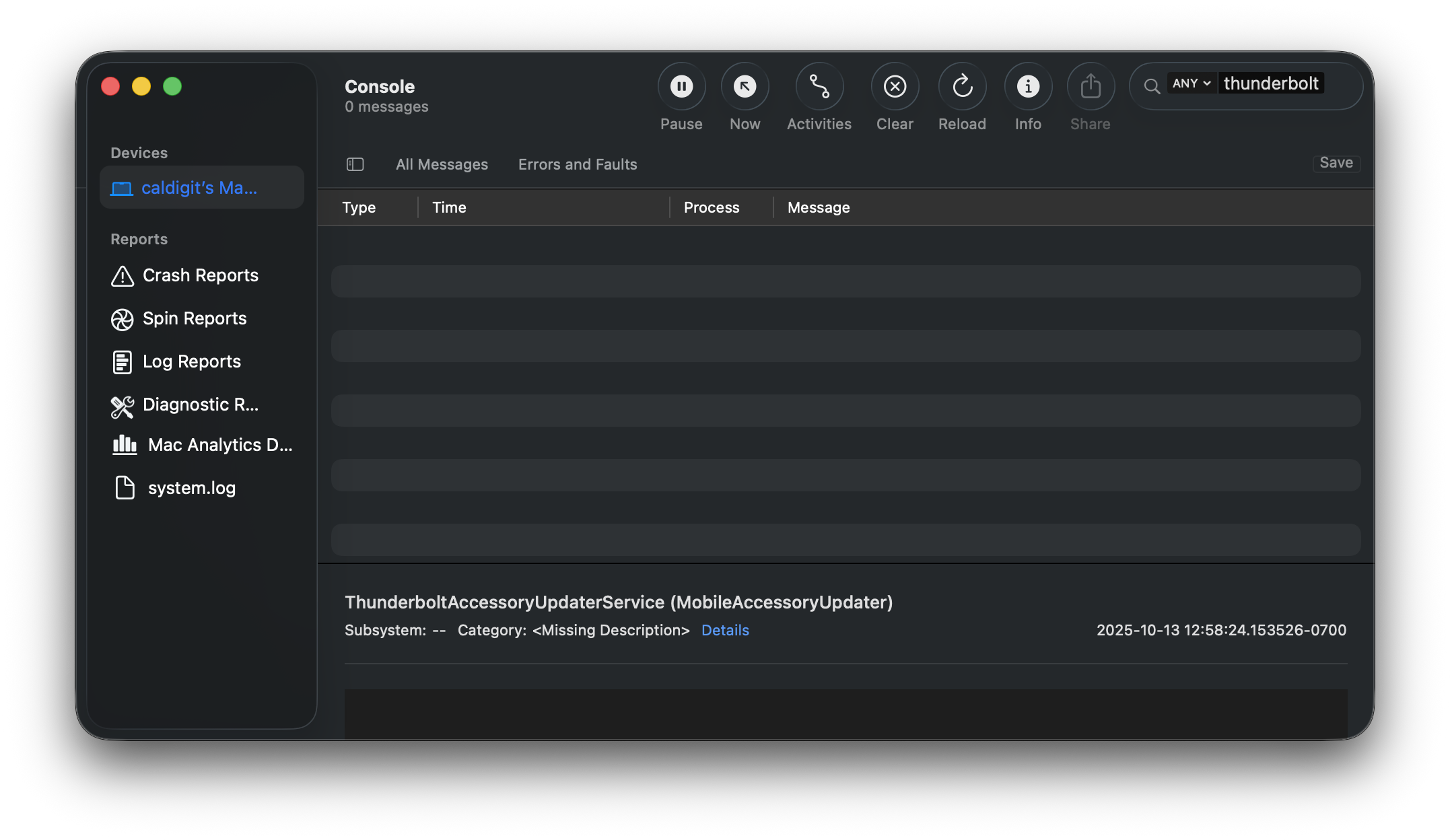
Reconnect the dock and begin the dock’s Thunderbolt firmware update by clicking “Update” in Step 7 of the Knowledge Base article linked above.
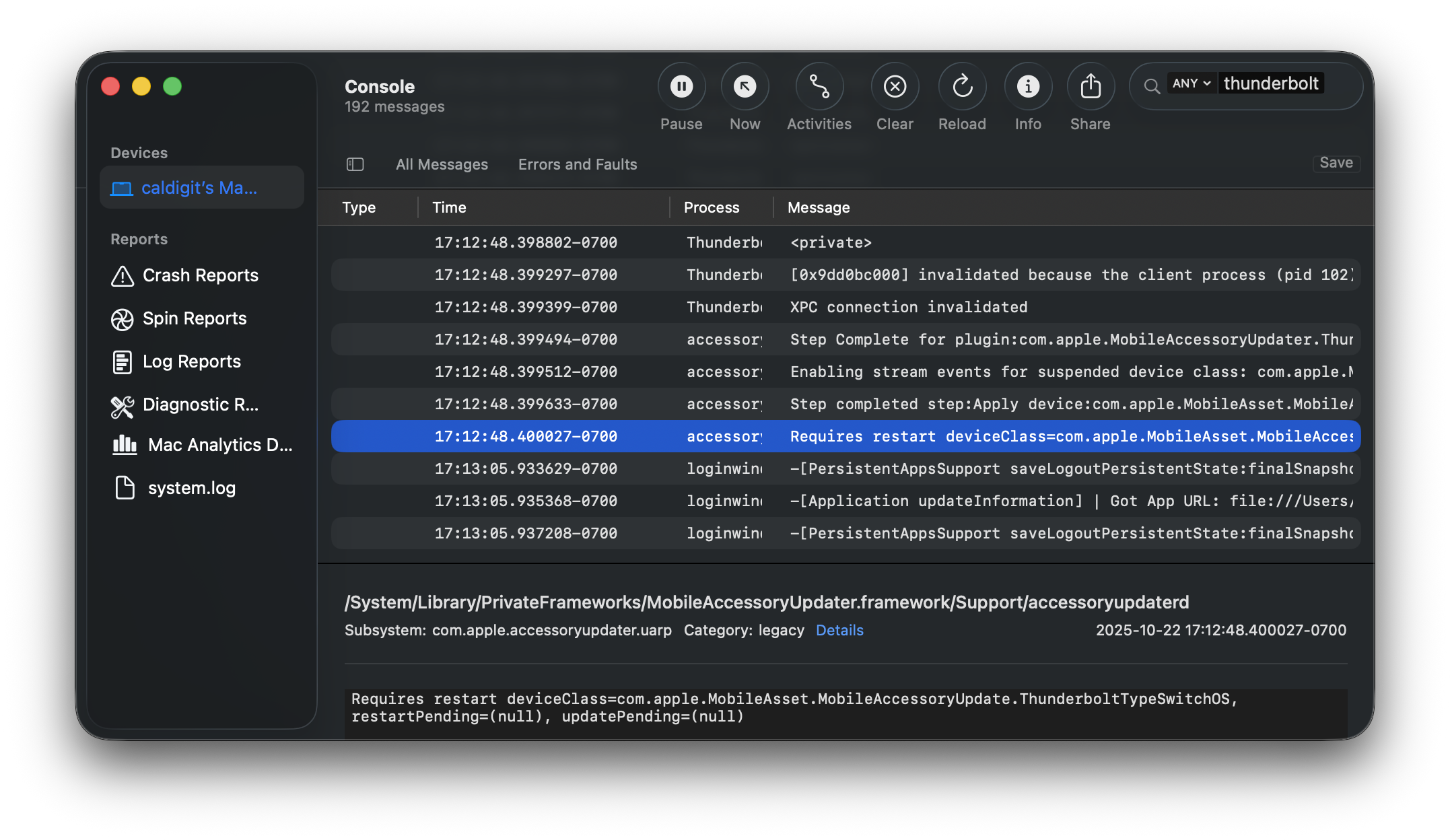
After clicking “Update”, the Console application should start to log updates from the dock. You should see a prompt that the dock “Requires restart” that corresponds with the pop-up in Step 8 to disconnect and reconnect the dock. When you see this prompt, disconnect your dock from the computer for 3 seconds, and reconnect the dock.
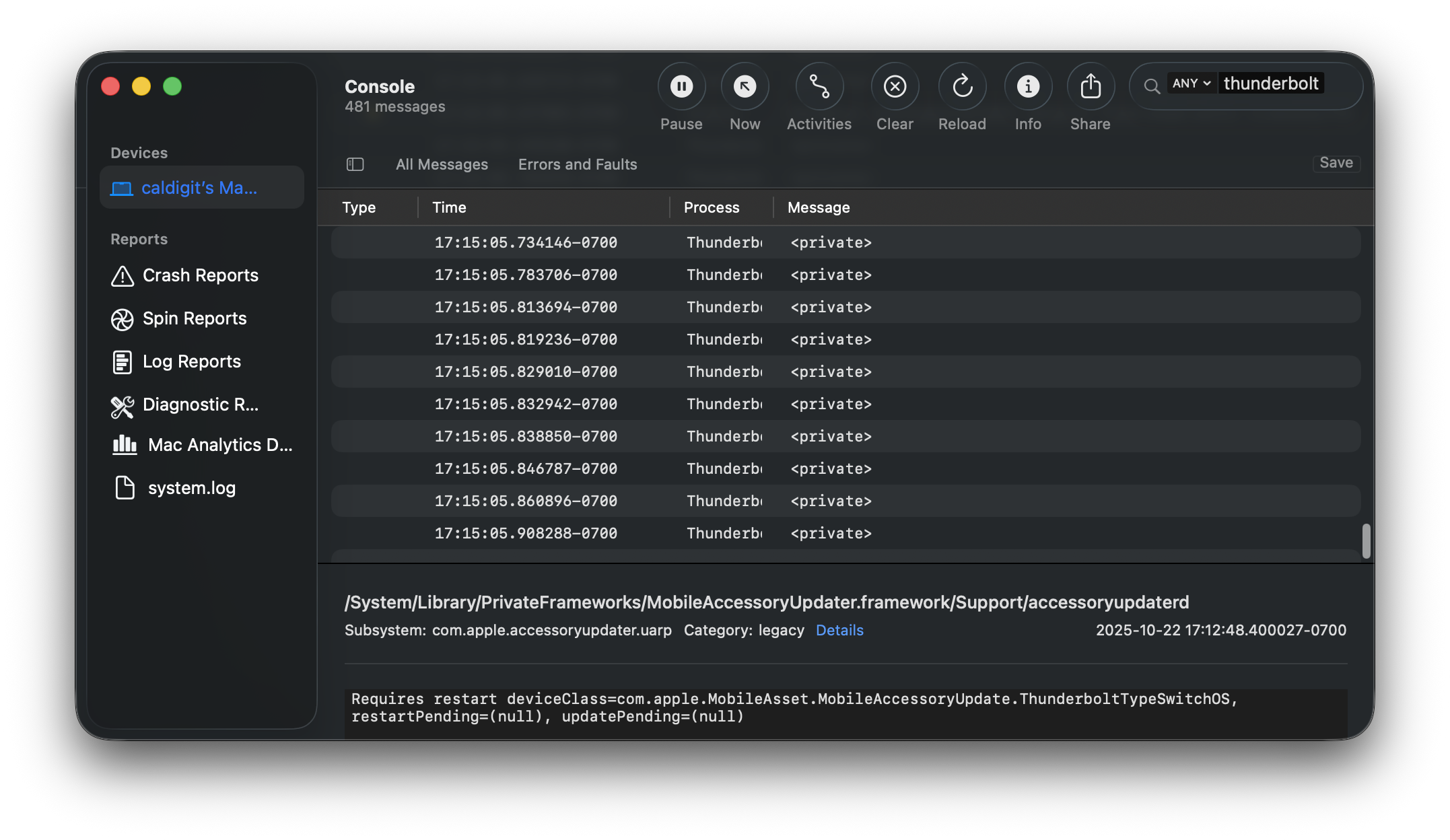
On the latest versions of macOS, the actual activity transmitted during a firmware update may be obfuscated and may appear as “<private>”. Activity can be monitored during this state by checking on the timestamps associated with activity.
When the update completes, the “<private>” logs should stop being generated, and the message “Step completed” may be visible.
At this point, simply disconnect the dock from power for 5 to 10 seconds, and reconnect the power to the dock. The update should now be complete.